


Video Editing Expert
Are you looking for a professional Video Editing Course in Rohini Delhi that helps you build real skills and a strong career in the media industry?
Graphic Design Institute (GDI) presents the Video Editing Expert Course, a 6-month practical program designed for beginners, students, content creators, YouTubers, freelancers, and working professionals who want to master video editing from scratch to advanced level.
This course focuses on hands-on training, real projects, and industry-relevant software used by professional video editors worldwide.
Course Overview
The Video Editing Expert Course in Rohini Delhi is structured to give you complete knowledge of video editing, motion graphics, and creative design. You will learn how to edit professional videos, create engaging motion effects, and design high-quality visual content for YouTube, Instagram, films, ads, and corporate videos.
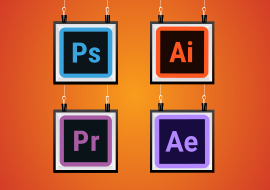
This course covers 4 powerful industry software tools:
-
Adobe Photoshop
-
Adobe Illustrator
-
Adobe Premiere Pro
-
Adobe After Effects
Each software is taught step-by-step with practical assignments and live projects.
Image Editing & Design
GETTING TO KNOW THE WORK AREA
- Introducing Adobe Illustrator
- Opening a file
- Exploring the workspace
- Getting to know the Tools
- Using Control panel
- Saving your workspace
- Change the artwork
- Using the Artboards panel
SELECTING ARTWORK
- Selecting objects
- Using the Selection, Direct Selection tool
- Creating selections with a marquee
- Hiding and locking objects
- Selecting similar objects
- Selecting in Outline mode
- Aligning objects
- Aligning objects to each other
- Aligning to a key object
- Aligning anchor points
- Distributing objects
- Aligning to the artboard
- Working with groups
- Grouping items
- Editing a group in Isolation mode
- Creating a nested group
- Exploring object arrangement
- Arranging objects
- Selecting objects behind
- USING SHAPES TO CREATE ARTWORK
- Creating a new document
- Working with basic shapes
- Creating and editing rectangles, ellipse, circle, polygon
- Rounding corners
- Changing stroke width and alignment
- Drawing lines, star
- Creating a
- Working with the Shaper tool
- Combining shapes
- Using the Draw Inside mode
- Using Image Trace
EDITING AND COMBINING SHAPES AND PATHS
- Starting the lesson
- Editing paths and shapes
- Cutting with the Scissors tool
- Joining paths
- Cutting with the Knife tool
- Using the Eraser tool
- Combining shapes
- Shape Builder tool
- Working with Pathfinder panel
- Creating a compound path
- Using the Width tool
- Outlining strokes
- Finishing up the illustration
- Starting the lesson
- Working with artboards
- Adding artboards
- Editing artboards
- Renaming artboards
- Reordering artboards
- Working with rulers and guides
- Creating guides
- Editing the ruler origin
- Transforming content
- Positioning artwork using the Transform panel
- Positioning artwork using Smart Guides
- Scaling objects
- Reflecting objects
- Rotating objects
- Distorting objects with effects
- Shearing objects
- Transforming with the Free Transform tool
- Creating a PDF
CREATING AN ILLUSTRATION
- Starting the lesson
- An intro to drawing with the Pen tool
- Selecting paths
- Drawing straight lines with the Pen tool
- Introducing curved paths
- Drawing a curve with the Pen tool
- Drawing a series of curves with the Pen tool
- Converting smooth points to corner points
- Combining curves and straight lines
- Creating artwork with the Pen tool
- Drawing a coffee cup
- Drawing with the Curvature tool
- Editing curves
- Reflecting the spoon shape
- Rounding corner points
- Editing paths and points
- Deleting and adding anchor points
- Converting between smooth points and corner points
- Anchor Point tool
- Create Dashed line
- Adding arrowheads to a path
- Working with the Pencil tool
- Drawing freeform paths with the Pencil tool
- Drawing straight segments with the Pencil tool
- Joining with the Join tool
USING COLOR TO ENHANCE SIGNAGE
- Starting the lesson
- Exploring color modes
- Working with color
- Applying an existing color
- Creating a custom color using the Color panel
- Saving a color as a swatch
- Creating a copy of a swatch
- Editing a swatch
- Creating and editing a global swatch
- Using the Color Picker to create color
- Using Illustrator swatch libraries
- Adding a spot color
- Creating and saving a tint of a color
- Converting colors
- Copying appearance attributes
- Creating a color group
- Creative inspiration with the Color Guide panel
- Editing a color group in the Edit Colors dialog box
- Editing colors in artwork
- Assigning colors to your artwork
- Working with Live Paint
- Creating a Live Paint group
- Painting with the Live Paint Bucket tool
- Modifying a Live Paint group
ADDING TYPE TO A POSTER
- Starting the lesson
- Adding type to the poster
- Adding text at a point
- Adding area type
- Working with Auto Sizing
- Converting between area and point type
- Importing a plain-text file
- Threading text
- Formatting type
- Changing font family and font style
- Fixing missing fonts
- Changing font size
- Changing font color
- Changing additional character formatting
- Working with Glyphs
- Changing paragraph formatting
- Modifying text with the Touch Type tool
- Resizing and reshaping type objects
- Creating columns of text
- Creating and applying text styles
- Creating and applying a paragraph style
- Editing a paragraph style
- Creating and applying a character style
- Editing a character style
- Sampling text formatting
- Wrapping text
- Reshaping text with a preset envelope warp
- Editing the envelope warp
- Working with type on a path
- Creating type on a path
- Creating type on a closed path
- Creating text outlines
ORGANIZING YOUR ARTWORK WITH LAYERS
- Starting the lesson
- Understanding layers
- Creating layers and sublayers
- Creating new layers
- Creating sublayers
- Editing layers and objects
- Locating layers
- Moving content between layers
- Viewing layers
- Reordering layers
- Collecting into a new layer
- Duplicating layer content
- Pasting layers
- Changing layer order
- Applying appearance attributes to layers
- Creating a clipping mask
GRADIENTS, BLENDS, AND PATTERNS
- Starting the lesson
- Working with gradients
- Applying a linear gradient to a fill
- Editing/Saving a gradient
- Adjusting a linear gradient fill
- Applying a linear gradient to a stroke
- Editing a gradient on a stroke
- Applying a radial gradient to artwork
- Editing the colors in the radial gradient
- Adjusting the radial gradient
- Applying gradients to multiple objects
- Adding transparency to gradients
- Working with blended objects
- Creating a blend with specified steps
- Modifying a blend
- Creating and editing a smooth color blend
- Painting with patterns
- Applying an existing pattern
- Creating your own pattern
- Applying your pattern
- Editing your pattern
USING BRUSHES TO CREATE A POSTER
- Starting the lesson
- Working with brushes
- Using Calligraphic brushes
- Applying a Calligraphic brush to artwork
- Drawing with the Paintbrush tool
- Editing paths with the Paintbrush tool
- Editing a brush
- Removing a brush stroke
- Using Art brushes
- Applying an existing Art brush
- Creating an Art brush
- Editing an Art brush
- Using Bristle brushes
- Changing Bristle brush options
- Painting with a Bristle brush
- Using Pattern brushes .
- Creating a Pattern brush
- Applying a Pattern brush
- Editing the Pattern brush
- Working with the Blob Brush tool
- Drawing with the Blob Brush tool
- Merging paths with the Blob Brush tool
- Editing with the Eraser tool
EXPLORING CREATIVE USES OF EFFECTS AND GRAPHIC STYLES
- Starting the lesson
- Using the Appearance panel
- Editing appearance attributes
- Stroke and fill to artwork
- Stroke and fill to text
- Reordering appearance attributes
- Applying an effect
- Editing an effect
- Styling text with a Warp effect
- Editing text with a Warp effect
- Offset Path effect
- Photoshop Effect
- Working with 3D effects
- Using graphic styles
- Graphic style
- Creating and applying a graphic style
- Graphic style to a layer
- Scaling strokes and effects
CREATING ARTWORK FOR A T-SHIRT
- Working with symbols
- Using existing Illustrator symbol libraries
- Editing a symbol
- Working with dynamic symbols
- Creating, Duplicating,Replacing symbol
- Breaking a link to a symbol
- Working with Creative Cloud Libraries
- Adding assets to CC Libraries
- Using Library assets
- Updating a Library asset
- Working with the perspective grid
- Using a preset grid
- Adjusting the perspective grid
- Drawing artwork in perspective
- Selecting and transforming objects in perspective
- Moving planes and objects together
- Drawing artwork with no active grid
- Adding and editing text in perspective
- Moving objects in a perpendicular direction
- Moving a plane to match an object
- Bringing content into perspective
- Editing symbols in perspective
- Releasing objects with perspective
- Finishing up
USING ILLUSTRATOR CC WITH OTHER ADOBE APPLICATIONS
- Starting the lesson
- Combining artwork
- Placing image files
- Placing an image
- Scaling a placed image
- Placing a Photoshop image with Show Import Options
- Placing multiple images
- Applying color edits to an image
- Masking images
- Applying a simple mask to an image
- Editing a clipping path
- Masking an object with text
- Creating an opacity mask
- Editing an opacity mask
- Sampling colors in placed images
- Working with image links
- Finding link information
- Embedding and unembedding images
- Replacing a linked image
- Packaging a file
EXPORTING ASSETS
- Starting the lesson
- Creating Pixel-Perfect Drawings
- Aligning new artwork to the pixel grid
- Aligning existing artwork to the pixel grid
- Exporting artboards and assets
- Exporting artboards
- Exporting individual assets
Module 1: Introduction to Photoshop
- Raster And Vector
- Set Image Size, Unit, Resolution & Color Mode
- Color Profile
- Photoshop Overview
Module 2: Selection
- Make Selection With Tools
- Rectangular Marquee
- Elliptical Marquee
- Single Row
- Single Column
- Lasso
- Polygonal Lasso
- Magnetic Lasso
- Quick Selection
- Magic Wand
Module 3: Crop & Select Color
- Crop Tool
- Perspective Crop
- Slice
- Slice Selection
- Eyedropper
- Color Sampler
Module 4: Image Editing Tools & Color Correction
- Spot Healing
- Healing
- Patch
- Content-Aware Move
- Red Eye
- Adjustments
- Brightness/Contrast
- Levels
- Curves
- Exposure
- Vibrance
- Hue/Saturation
- Color Balance
- Black & White
- Photo Filter
- Channel Mixer
- Color Lookup
Module 5: Brush Tools
- Brush
- Create Brush
- Upload Brush
- Use Brush Setting
- Pencil
- Color Replacement
- Mixer Brush
- Clone Stamp
- Pattern Stamp
- Eraser
- Background Eraser
- Magic Eraser
- Blur
- Sharpen
- Smudge
- Dodge
- Burn
- Sponge
Module 6: Color
- Fill Color In Selection
- Pattern
- Gradient
- Paint
- Bucket
Module 7: Create Path
- Use Pen
- Freeform Pen Tool
- Add Anchor Point
- Convert Point
Module 8: Text
- Use Horizontal & Vertical Type
- Use Horizontal & Vertical Type Mask
- Character & Paragraph Palette
- Font Size
- Font Family
- Font Style
- Leading
- Kerning
- Tracking
- Horizontal & Vertical Scale
- Baseline Shift
- Paragraph Align
- Left & Right Indent
- Before & After Paragraph Space
- Module 9: Create Shape
- Rectangle
- Rounded Rectangle
- Ellipse
- Polygon
- Line
- Custom Shape Create And Add Shape
Module 10: Work Mask
- Clipping Mask
- Layer Mask
- Type Mask
- Vector Mask
- Quick Mask
Module 11: Layer Style
- Bevel & Emboss
- Stroke
- Inner Shadow
- Inner Glow
- Satin
- Color Overlay
- Gradient Overlay
- Pattern Overlay
- Outer Glow
- Drop Shadow
Module 12: Practice Work
- Create Banner
- Poster
- Mobile App UI
- Website UI (Responsive)
- Social Media Post
Module 13: Filter
- Filter Gallery
- Camera Raw
- Liquify
- Oil Paint
- Vanishing Point
- Blur
- Distort
- Noise
- Pixelate
- Render
- Sharpen
- Stylize
Module 14: 3D
- Create 3D Shape
- 3D Text
- 3D Custom Shape
- Apply Texture
- Use 3D Material Eyedropper
- Use 3D Material Drop
Module 15: Use Adv. Option
- Action
- Animation
- Create GIF File
Module 16: Export File In
- .Psd
- .Jpg
- .Png
- .Gif
Video Editing
Module 1: Introduction to Premiere Pro
Getting Started
-
Overview of Premiere Pro interface
-
Workspace customization (Editing, Color, Audio, etc.)
-
Project setup (Resolution, frame rate, bit depth)
-
Understanding video formats (MP4, MOV, AVI, etc.)
-
Creating and saving projects
Importing Media
-
Importing files (video, audio, images)
-
Using Media Browser
-
Organizing assets in bins
-
Proxy workflow for 4K/8K editing
Module 2: Basic Editing Techniques
Timeline Fundamentals
-
Creating sequences
-
Understanding tracks (video/audio)
-
Razor tool, Selection tool, and other essential tools
-
Three-point and four-point editing
Editing Workflow
-
Insert vs. Overwrite edits
-
J-cut and L-cut techniques
-
Using markers for organization
-
Basic transitions (Cross Dissolve, Dip to Black)
Module 3: Advanced Editing
Trimming & Refining Cuts
-
Ripple, Roll, Slip, and Slide edits
-
Trim Mode for precision editing
-
Keyboard shortcuts for faster workflow
-
Multicam editing (syncing and switching angles)
Nesting & Compound Clips
-
When and why to use nests
-
Creating compound clips
-
Dynamic Link with After Effects
Module 4: Motion & Effects
Keyframing & Animation
-
Basic keyframe animation (Position, Scale, Rotation)
-
Using the Effect Controls panel
-
Easing keyframes for smooth motion
-
Motion presets
Video Effects
-
Applying and adjusting effects
-
Lumetri Color basics
-
Warp Stabilizer for shaky footage
-
Green screen (Chroma Key) & masking
Module 5: Audio Editing
Audio Workflow
-
Adjusting audio levels
-
Keyframing audio for fade-ins/outs
-
Using the Essential Sound panel
-
Noise reduction and audio cleanup
Mixing & Exporting Audio
-
Audio track mixer
-
Exporting audio separately (WAV, MP3)
-
Syncing external audio (e.g., from a recorder)
Module 6: Color Correction & Grading
Basic Color Correction
-
Using Lumetri Color panel
-
White balance correction
-
Exposure and contrast adjustments
-
Saturation and vibrance
Advanced Color Grading
-
Creating cinematic looks
-
Using LUTs (Look-Up Tables)
-
Secondary color correction (HSL adjustments)
-
Matching colors between clips
Module 7: Titles & Graphics
Text & Titles
-
Creating basic titles
-
Styling text (fonts, colors, shadows)
-
Lower thirds and animated titles
-
Using templates (Motion Graphics Templates)
Working with Graphics
-
Importing Photoshop/Illustrator files
-
Creating shapes and masks
-
Track mattes for creative effects
Module 8: Exporting & Delivery
Export Settings
-
Best formats for YouTube, Vimeo, Instagram
-
H.264 vs. H.265 (HEVC)
-
Bitrate settings for quality vs. file size
-
Exporting for broadcast (ProRes, DNxHD)
Advanced Export Options
-
Using Adobe Media Encoder
-
Batch exporting
-
Creating custom presets
-
Exporting for social media (square, vertical video)
Module 9: Advanced Techniques
Time Remapping & Speed Effects
-
Slow motion & speed ramps
-
Frame blending vs. Optical Flow
-
Reverse playback
VR & 360 Video Editing
-
Setting up a 360° project
-
Reframing 360 footage
-
Exporting for VR platforms
Module 10: Real-World Projects
Hands-On Exercises
-
Short Film Edit (Narrative storytelling)
-
YouTube Vlog (Fast-paced cuts, music sync)
-
Commercial Ad (Color grading, text animation)
-
Documentary (Multicam interviews, B-roll)
Final Project
-
Portfolio-Ready Video (Full workflow from edit to export)
-
Includes color grading, sound mixing, and motion graphics
Motion Graphic & VFX
Module 1: Introduction to After Effects
Getting Started
-
Understanding the After Effects workspace
-
Panels overview (Project, Composition, Timeline, Effects)
-
Creating a new composition (resolution, frame rate, duration)
-
Importing assets (video, images, audio, AI/PSD files)
-
Basic navigation (zoom, pan, timeline scrubbing)
Core Concepts
-
Layers and their properties (transform, opacity)
-
Understanding keyframes
-
RAM Preview vs. Standard Preview
-
Rendering basics (export settings)
Module 2: Animation Fundamentals
Basic Keyframing
-
Position, Scale, Rotation, Opacity animations
-
Easy Ease for smooth motion
-
Graph Editor (speed vs. value graphs)
-
Parenting and linking layers
Motion Techniques
-
Motion paths and direction
-
Auto-Orient for natural movement
-
Loop animations (expression:
loopOut("cycle")) -
Time remapping (slow motion, speed ramps)
Module 3: Effects & Presets
Built-in Effects
-
Blur & Sharpen (Gaussian Blur, Radial Blur)
-
Distortion (Liquify, Turbulent Displace)
-
Stylize (Glow, CC Kaleida)
-
Color Correction (Lumetri, Levels, Curves)
Using Presets
-
Animation Presets (Text, Transitions)
-
Saving custom presets
-
FX Console for quick effect application
Module 4: Text Animation
Basic Text Layers
-
Character & Paragraph panels
-
Text animators (position, scale, rotation)
-
Range selectors (advanced text animation)
-
Text presets (Typewriter, Motion Blur)
Advanced Typography
-
Kinetic typography (sync with audio)
-
3D text extrusion
-
Text on a path
-
Masking text for creative effects
Module 5: Masking & Rotoscoping
Masks
-
Creating and editing masks
-
Mask feathering & expansion
-
Track mattes (Alpha, Luma)
-
Mask interpolation for smooth shapes
Rotoscoping
-
Rotobrush 2.0 (AI-powered cutouts)
-
Refine Edge for fine details
-
Manual rotoscoping with masks
Module 6: Green Screen & Compositing
Chroma Keying
-
Keylight (1.2) for green screen removal
-
Spill suppression techniques
-
Edge refinement for clean composites
Advanced Compositing
-
Blend modes (Multiply, Screen, Overlay)
-
Camera tracking for realistic integration
-
Shadow catching for believable composites
Module 7: 3D in After Effects
3D Layers & Cameras
-
Enabling 3D for layers
-
Camera tools (orbit, track, dolly)
-
Depth of field & focus effects
-
Lights (Point, Spot, Ambient)
Cinema 4D Lite (AE Built-in)
-
Basic 3D object creation
-
Extruding text and shapes
-
Integrating 3D elements with live footage
Module 8: Motion Graphics Templates (MOGRTs)
-
Creating templates for Premiere Pro
-
Essential Properties for customization
-
Exporting MOGRTs
-
Using MOGRTs in Premiere Pro
Module 9: Expressions & Automation
Basic Expressions
-
Wiggle expression (
wiggle(5,10)) -
Loop expressions (
loopOut("pingpong")) -
Time-based animations (
time * 100)
Advanced Scripting
-
Linking properties with pick whip
-
Creating dynamic animations
-
Using JavaScript for complex automation
Module 10: Rendering & Optimization
Export Settings
-
Render Queue vs. Adobe Media Encoder
-
Best formats for YouTube, Instagram, TV
-
Alpha channel (transparent background)
-
Multi-machine rendering
Performance Tips
-
Pre-rendering heavy compositions
-
Proxy workflow for 4K/8K projects
-
Cache management for smooth playback
Module 11: Real-World Projects
Hands-On Exercises
-
Logo Animation (Bouncing, Revealing)
-
Infographic Explainer (Data visualization)
-
VFX Shot (Fire, Lightning, Compositing)
-
Social Media Ad (Kinetic typography + motion graphics)
Final Project
-
Portfolio-Reel (Combining all learned techniques)
-
Includes VFX, motion graphics, and 3D elements
Who Can Join This Course?
This Video Editing Course in Rohini Delhi is perfect for:
-
Students after 10th / 12th / graduation
-
Aspiring video editors
-
YouTubers & content creators
-
Social media managers
-
Freelancers
-
Working professionals
-
Beginners with no prior experience
No technical background is required.
Career Opportunities After This Course
After completing the Video Editing Expert Course, you can work as:
-
Video Editor
-
Motion Graphics Designer
-
YouTube Video Editor
-
Social Media Video Creator
-
Freelance Video Editor
-
Media & Production Assistant
You can work with media houses, digital agencies, production studios, or start your freelancing career.
Course includes:
-
 Level
Advance
Level
Advance
-
 Duration
6 Months
Duration
6 Months
-
 Certifications
Yes
Certifications
Yes
-
 Placement
Assistance
Placement
Assistance