


Vector vs Raster Graphics: A Beginner's Guide
If you have ever tried to enlarge a logo and watched it turn into a blurry mess, you have already met the vector vs raster graphics problem firsthand. This is one of the first concepts every design student must understand before touching software like Photoshop or Illustrator. In this article, we will break down what vector and raster graphics actually are, how they behave differently, which file formats belong to each type, and how to decide which one to use for a given project. By the end, you will be able to look at any image and know exactly what kind of graphic it is, and why that matters.
What Are Raster Graphics?
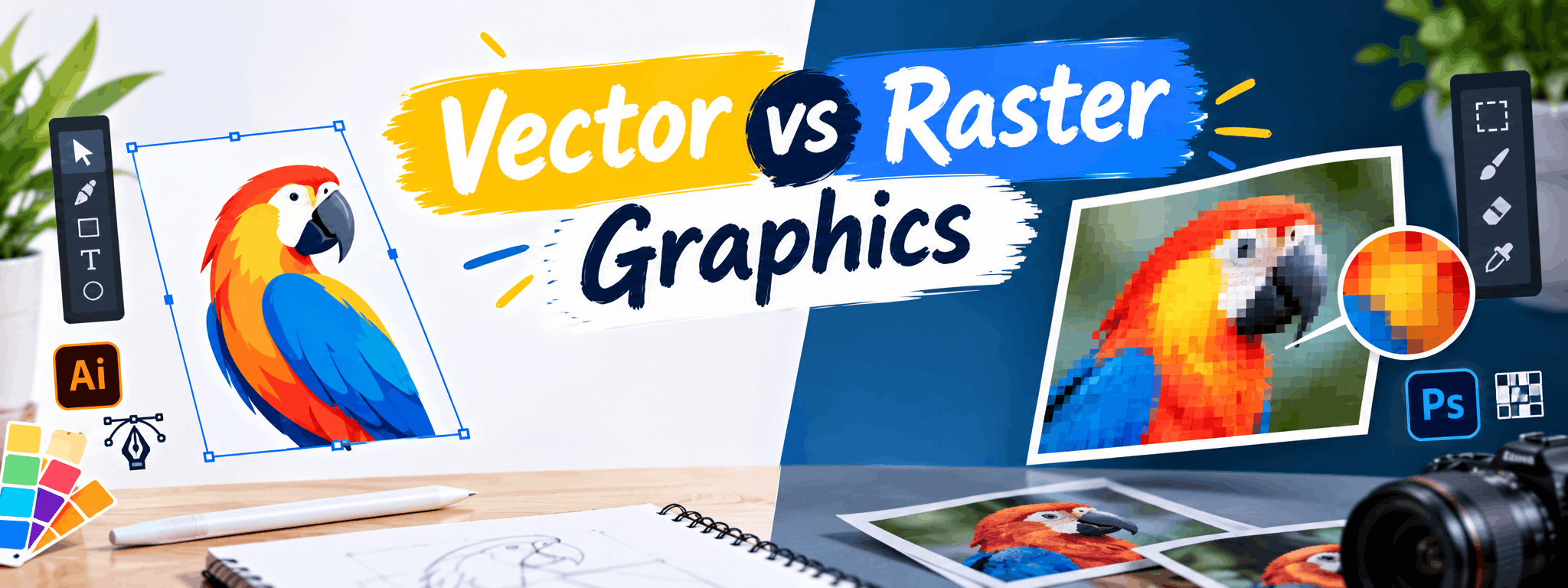
Raster graphics, also called bitmap images, are made up of tiny squares called pixels. Each pixel holds a specific colour value, and when thousands of these pixels sit together, they form a complete image. Photographs, scanned artwork, and most images you see on websites and social media are raster-based.
The catch with raster images is resolution dependency. Since the image is built from a fixed number of pixels, enlarging it beyond its original size forces the software to stretch those pixels, causing blur or a blocky, pixelated look.
Common Raster File Formats
- JPEG (.jpg) - widely used for photos, supports compression
- PNG (.png) - supports transparency, good for web graphics
- GIF (.gif) - used for simple animations and low-colour images
- TIFF (.tif) - high-quality format used in printing and photography
- PSD (.psd) - native Photoshop file format
What Are Vector Graphics?
Vector graphics are built using mathematical formulas rather than pixels. Instead of storing colour information for every dot in an image, vector files store points, lines, curves, and shapes defined by coordinates. This is why vector graphics can be scaled up or down to any size without losing sharpness.
Logos, icons, typography, illustrations, and technical drawings are usually created as vectors because they often need to appear on a small business card as well as a large hoarding, without any quality loss.
Common Vector File Formats
- AI (.ai) - native Adobe Illustrator format
- EPS (.eps) - widely used for print-ready artwork
- SVG (.svg) - vector format built for web use
- PDF (.pdf) - can contain vector data and is easily shareable
Vector vs Raster Graphics: Key Differences
Here is a simple comparison to help you understand where each type of graphic fits best.
| Aspect | Vector Graphics | Raster Graphics |
|---|---|---|
| Built from | Mathematical paths and shapes | Pixels (small coloured squares) |
| Scalability | Can be resized infinitely without quality loss | Loses quality when enlarged |
| Best for | Logos, icons, illustrations, typography | Photographs, digital paintings, detailed textures |
| File size | Usually smaller, especially for simple designs | Can be large depending on resolution and detail |
| Common software | Adobe Illustrator, CorelDRAW, Inkscape | Adobe Photoshop, GIMP, Procreate |
| Editing style | Edit shapes, curves, and anchor points | Edit pixels directly, works well for blending and shading |
| Common formats | AI, EPS, SVG, PDF | JPEG, PNG, GIF, TIFF, PSD |
When Should You Use Vector Graphics?
Choose vector graphics when the final output needs to work across multiple sizes without any loss of clarity. Some practical examples include:
- Company logos that appear on letterheads, websites, and large banners
- Icon sets for apps or websites
- Vehicle wraps, hoardings, and signage artwork
- Typography-based designs and custom fonts
- Technical illustrations and infographics
A good habit is to always design your logo in vector format first, even if you plan to use it mostly on screens. This gives you flexibility for future print or large-format needs.
When Should You Use Raster Graphics?
Raster is the natural choice whenever realistic detail, shading, or photographic quality matters. Common use cases include:
- Photo editing and retouching
- Digital painting with soft blends and textures
- Social media posts and banners with photographic elements
- Website images that don't need to be resized dramatically
Raster images work well as long as you plan your resolution correctly from the start, since fixing a low-resolution raster image later is very difficult.
Common Mistakes Beginners Make
- Trying to enlarge a small JPEG logo and wondering why it looks pixelated
- Saving a vector logo as a low-resolution PNG and losing its scalability advantage
- Using raster software like Photoshop for tasks that should be done in Illustrator, such as designing a scalable logo
- Not checking file format requirements before sending artwork to a printer
- Ignoring resolution (DPI) settings when creating raster files meant for print
How to Tell Which Type of Image You Are Looking At
If you are unsure whether an image is vector or raster, try zooming in significantly. If the edges stay crisp and clean at any zoom level, it is likely a vector graphic. If you start seeing small coloured squares or blur, it is raster. Another quick check is the file extension - SVG, AI, and EPS files are vector, while JPEG, PNG, and GIF are raster.
Learning Vector and Raster Skills Together
Professional designers rarely rely on just one type of graphic. A single project, such as a brand identity or a marketing brochure, often combines vector elements like logos and icons with raster elements like product photography or textured backgrounds. Understanding how to move between both formats, and how to combine them without losing quality, is a core skill for anyone entering graphic design.
If you are just starting out and want structured classroom training with practical, guided learning on tools like Illustrator and Photoshop, GDI's Graphic Design course may be worth considering. Learning under an instructor helps you avoid common beginner mistakes and build a stronger portfolio faster than learning alone from scattered tutorials.
Building a Portfolio That Shows Both Skills
When you start creating your portfolio, include a mix of work that demonstrates both vector and raster skills:
- A logo or icon set designed fully in vector format
- A photo manipulation or retouching sample showing raster editing skills
- A poster or social media design combining both photography and vector illustration
- Before-and-after examples showing your editing process
This range shows potential clients or employers that you understand which tool suits which job, rather than relying on a single technique for everything.
About Graphic Design Institute
Graphic Design Institute (GDI) is a training institute based in Rohini, Delhi, offering practical courses in Graphic Design, Web Design, Video Editing, Web Development, Digital Marketing, AutoCAD 2D & 3D, and Data Analytics. GDI focuses on hands-on, classroom-based learning to help students build real, job-ready design skills alongside a portfolio they can showcase confidently.
If you want to explore graphic design fundamentals like vector and raster tools in a guided classroom setting, our team at GDI can share exact course details, schedules, and structure.
Interested in learning more? Explore our Graphic Design course or register now for a free demo class at Graphic Design Institute.
Frequently Asked Questions
Everything you need to know before joining.